PLANNING_TREE Step
Overview
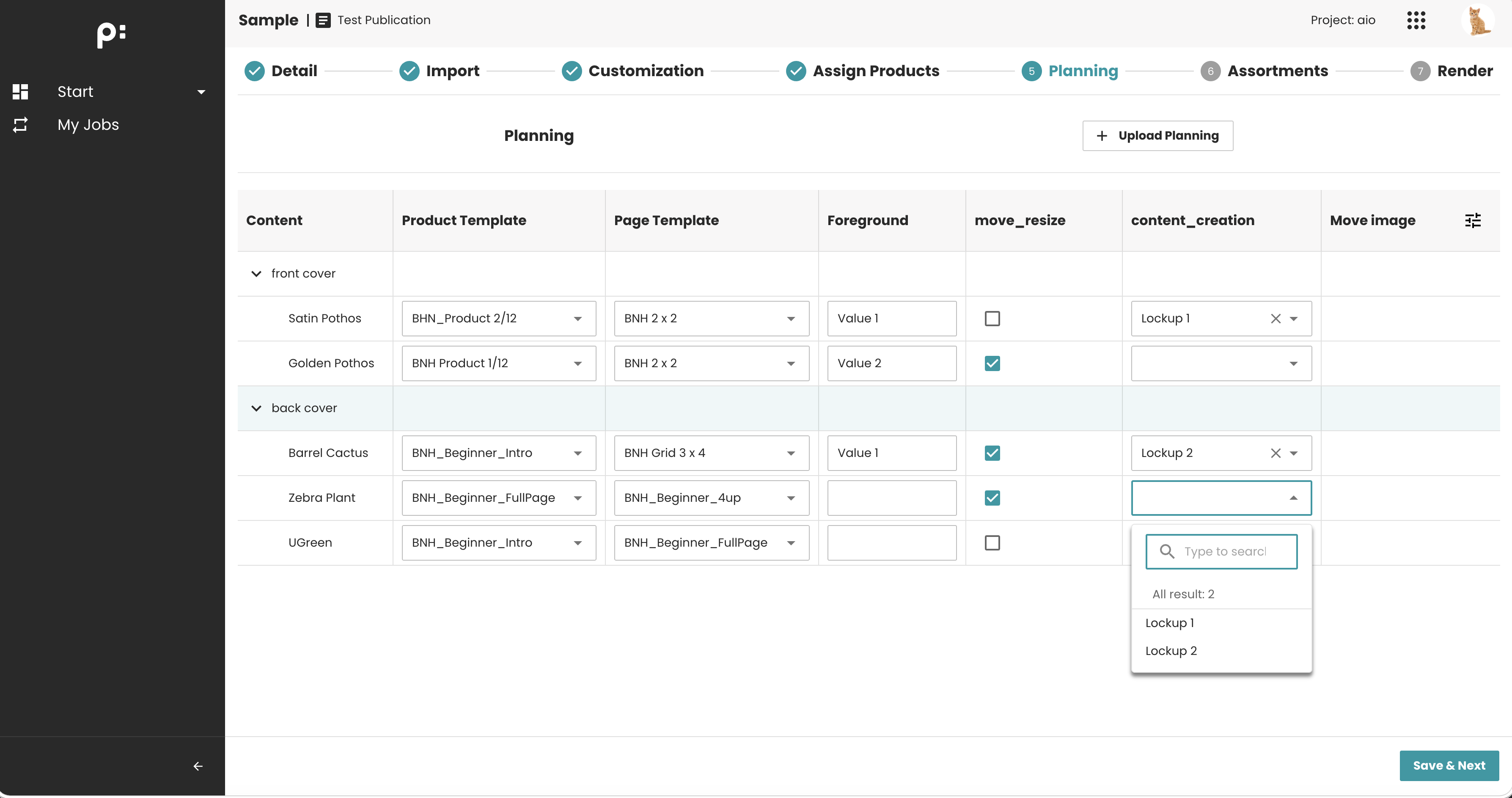
The PLANNING_TREE step displays the publication’s planning structure in a hierarchical tree view. It is typically used to show documents and planning units along with their configured content metadata columns.
When to Use This Step
Use the PLANNING_TREE step when you need to:
- Show the publication structure
- Provide context before editing or assignment steps
- Visualize planning content metadata
- Allow users to update the planning data: product template, page template and content metadata.
- Allow users to review documents and planning data in a structured way
Typical examples:
- Showing structure after product assignment
- Presenting planning elements during workflow setup
- Review imported structure after an import process
Key Features
- Hierarchical tree display (expand/collapse)
- Required columns and default columns defined by backend configuration (ISON)
- Displays and edits content metadata for each planning node
- Often used as informational confirmation step
Behavior Summary
Tree Loading
When the user enters the step:
- The frontend loads the planning structure from the backend
- Columns are shown based on backend configuration
- Branches can be expanded to view nested items
Interaction Behavior
Users can:
- Expand/collapse nodes
- View column values
- Inspect planning hierarchy
- Select the page template and product template for the planning based on
Filtering Planning Documents
By default, all documents in a publication are available for the planning tree during the PLANNING_TREE step. If you want to display only specific documents based on custom conditions, you can use the following option:
<parameter key="document_filter">planning_tree_filter</parameter>
- This parameter enables a Document Filter to control which documents are displayed.
- The value of the
document_filterparameter must be the ID of a filter defined in thedocumentFilterssection. - For detailed information about configuring a Document Filter, see: Document Filter.
Configuring the Planning Tree Columns
The planning tree in the PLANNING_TREE step supports two types of columns:
- Static columns – Standard planning properties, such as Label, ID, Entity ID, Created On, and Created By...
- Metadata columns – Content metadata associated with the planning, support both "View" and "Edit" mode.
By default, all available static and metadata columns can be displayed in the "View" mode. To limit the available columns or enable the "Edit" mode for the content metadata columns, configure the following step parameters:
<parameter key="entity_column" id="static_columns">static_columns</parameter>       <!-- Static columns -->
<parameter key="entity_column" id="metadata_columns">metadata_columns</parameter>   <!-- Metadata columns -->
- The value of each
entity_columnparameter must be the ID of a column list defined in theentityColumnssection.- The parameter with
id="static_columns"defines the available static columns. - The parameter with
id="metadata_columns"defines the available metadata columns.
- The parameter with
Note: If these parameters are not configured, all available static and metadata columns are available in the planning tree.
For detailed information about configuring Entity Columns, see Entity Columns.
Product Template and Page Template Assignment
If the Product Template and Page Template columns are visible, users can assign values directly from the table.
The assignment behavior is consistent across PubServer applications (for example, priint:planner) and follows these rules:
Product Template
A Product Template can be assigned to the planning items only if the publication has one or more Product Templates assigned.
Page Template
A Page Template can be assigned only if:
- The publication has one or more Page Templates assigned.
- The document contains the Page Template metadata attribute (
priint_pageTemplate), which is one of the supported default metadata attributes.
Sample Configuration
The full-features supported configuration for this step could look like:
<wizardSteps>
    <wizardStep id="planning_overview">
        <label>Planning Overview</label>
        <type>PLANNING_TREE</type>
        <status>planning_overview_status</status>
        <required>false</required>
        <parameters>
            <parameter key="entity_column" id="static_columns">static_columns</parameter>       <!-- custom the static columns -->
            <parameter key="entity_column" id="metadata_columns">metadata_columns</parameter>   <!-- custom the metadata columns -->
            <parameter key="document_filter">planning_step_filter</parameter>                   <!-- filtering the planning documents -->
        </parameters>
    </wizardStep>
</wizardSteps>

<entityColumns>
  <entityColumn type="static" id="static_columns">
      ...
  </entityColumn>
  <entityColumn type="metadata" id="metadata_columns">
      ...
  </entityColumn>
</entityColumns>
<documentFilters>
  <documentFilter id="planning_step_filter">
    ...
  </documentFilter>
</documentFilters>