Example
Overview
Product List by Rule builds the product list of a document from XML rules instead of a custom CScript build script. The configuration describes how products are collected, filtered, sorted, and which templates, page templates are assigned. The plugin reads that configuration and returns the finished product list for rendering.
This example renders a document with two planned products. In the planning no templates are assigned. After processing the products get the same template, assigned by a single rule with no filtering. It is the smallest configuration that produces a finished document, and a good starting point before you add conditions, page breaks, or several rules.
It does not show the reason why Product List by Rule exists. Project data often represents deeply nested trees, and the user might want to plan at the chapter level. The build-up script helps traverse all the children below the selected level and assigns chapter overviews, product templates, optional accessory templates, and more, all by rules.
Before you start, make sure the plugin is deployed, and that a page template and a product template exist in your project. See Installation and Configuration.
The default configuration works best with the consistent demo data and demo templates. If you are using different page templates or product templates please ensure you replace them with your specific identifiers or template names.
Prepare Document
Your starting point should be the priint:planner application.
- Create a new dynamic document with these parameters:
- Language (identifier:
_language):eng - Country (identifier:
_country):US - Rendering Rule Set (identifier:
_renderingruleset):Generic
- Language (identifier:
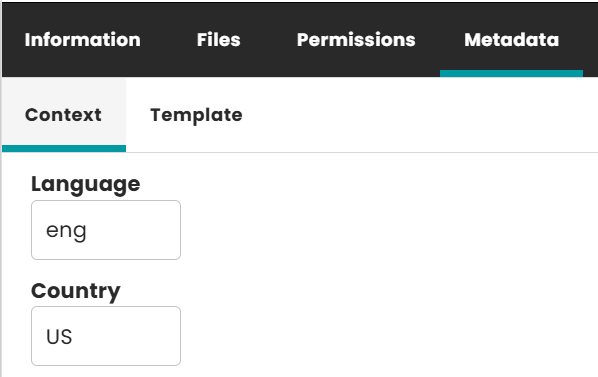
The context parameters of the document. They pass the document context to the plugin and the placeholders.
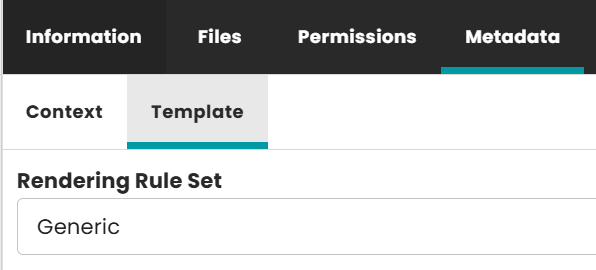
The Rendering Rule Set parameter selects the rule set. Its value must match the configId of a rule set in the XML
configuration. This example uses Generic in both places.
- Plan two products in the document:

Two planned products. The Entity Identifier is product, which is the value you would use in <entityIdentifier> if
you filter products by entity. The Product Template column is empty, so no template is planned on either record.
The rule below assigns the template instead.
Create a Basic XML Configuration
- Define a new rule set inside the XML configuration file
productListRule.xml:

The configuration file in the plugin folder
com.priint.accpack.productlistbyrule.GenericProductListByRulePlugin/WerkII/default/productListRule.xml.
Example
<productListRuleSet configId="Generic" log="0" logPath="$DESKTOP/product-list-rule.log" mode="planning">
    <productListRules defaultPageTemplate="268494491" exclusive="true">
        <productListRule sort="1">
            <actionList>
                <action method="addCurrentBucket">
                    <pageItemIds>
                        <when assignTemplate="268489866"/>
                    </pageItemIds>
                </action>
            </actionList>
        </productListRule>
    </productListRules>
</productListRuleSet>
configId: The name of the rule set. It must match the_renderingrulesetparameter of the document. Without this match the plugin does not find a rule set.mode:planningworks whether the products are buckets or planning records. It is the safe choice for a first configuration. It will retrieve the products by using the planning record.log: Set to0here, so no log file is written. Set it to1while you build your own configuration. The plugin then writes the incoming and the returned product list tologPath, which is the fastest way to see what your rules did.exclusive: With one rule this setting changes nothing. It matters once you add more rules, because it keeps only the first matching rule for each product.- The rule has no
conditionList, so it applies to every product. Add aconditionListwhen you want a rule to handle only some of the products. defaultPageTemplate: The page template identifier. It's used as default page template during rendering.
Check the Reference for an in-depth explanation of all these configuration options.

Copy the page template identifier from the Page Templates panel. Here BNH_Product Page demo page template has the ID 268494491.
assignTemplate: The template identifier. It's used to assign for all products in the product list. The products in this example have no planned template, so this template is used for both of them. To use the template already planned on a record instead, setassignTemplatetoPLANNED_TEMPLATE.

Copy the template identifier from the Templates panel. Here BNH_Beginner_Product demo template has the ID 268489866.
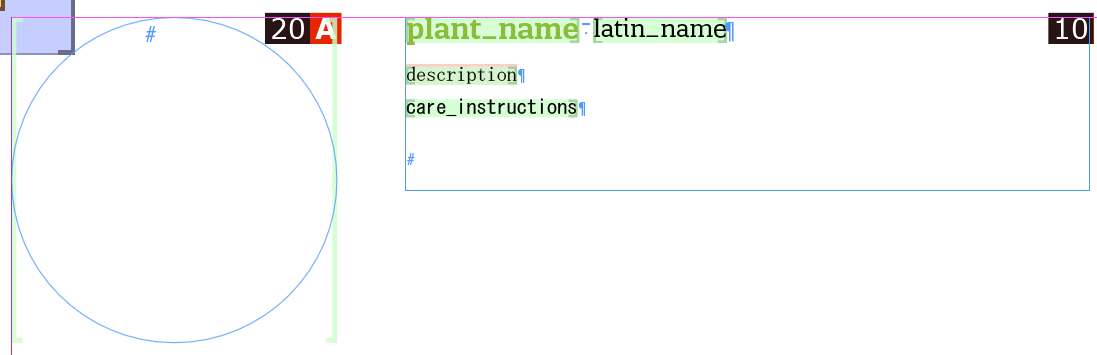
The BNH_Beginner_Product template with its placeholders.
This example uses numeric identifiers so that they match the panels in the screenshots. Identifiers are generated per system, so a configuration with numeric identifiers might not work on another system if the template is created manually on each. In a project configuration, use the page template name and the template name instead.
Render Document
Run the build script to render the document.
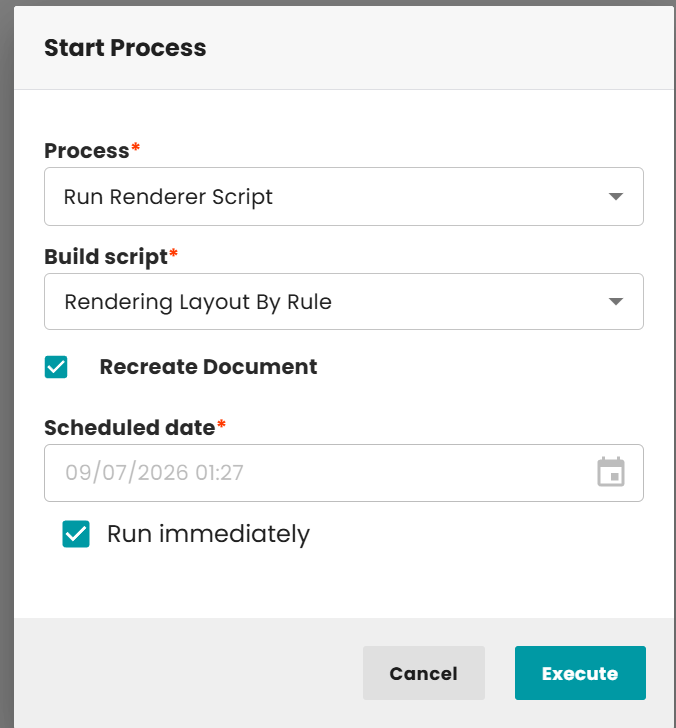
Start the process Run Renderer Script and select the build script Rendering Layout By Rule.
Select the option Recreate Document to ensure that the new rendering is not appended to the existing document.
Rendering Layout By Rulescript is used to render the document with product list defined in the XML configuration. It's shipped with the plugin and gets added during installation.

The build script in Management Planner, under Document Planning.
Document Result
After build up run successfully, the document is rendered with 2 products within page template, template defined in the XML configuration.
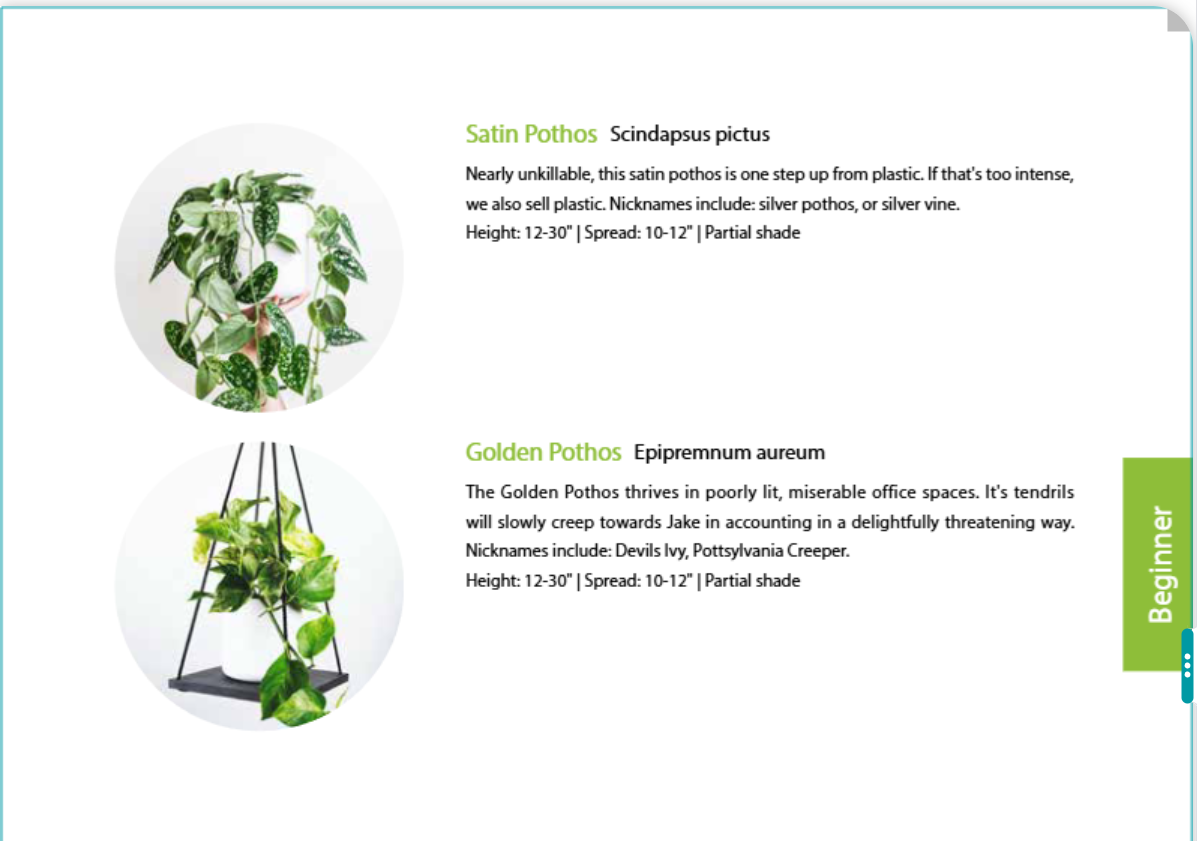
Both planned products rendered with the BNH_Beginner_Product template on the BNH_Product Page page template.