Example
This section shows how to run an import with the Data Import AccPack. Both examples use the Baroque-N-Heart Plants demo data set, an Excel file in the Generic Import Excel Format.
Trigger Methods
The Data Import AccPack supports two trigger methods. Both use the same core import plugin and XML configuration. They differ in how the import file enters the system and how the process gets started.
- Import via AdminUI: a user uploads a file manually through the AdminUI. Use this for one-off or on-demand imports.
- Import via Hotfolder: a timer job scans a folder on a schedule and imports any files it finds. Use this for recurring automated imports.
The Demo Data Set
The demo file (Official)BaroqueNHeart_Plants.xlsx contains a plant catalog for the fictional Baroque-N-Heart brand.
The Excel Data sheet defines the bucket hierarchy and all content, one bucket per row:
Plants
    Online / Offline Catalog 2025
        Beginner
            Beginner Section Opener
            12 plant products (Satin Pothos, Golden Pothos, Barrel Cactus, ...)
        Easy
            Easy Section Opener
            16 plant products (Corn Plant, Jade Plant, Aloe, ...)
    Editorial Content
        Topseller
        Sale
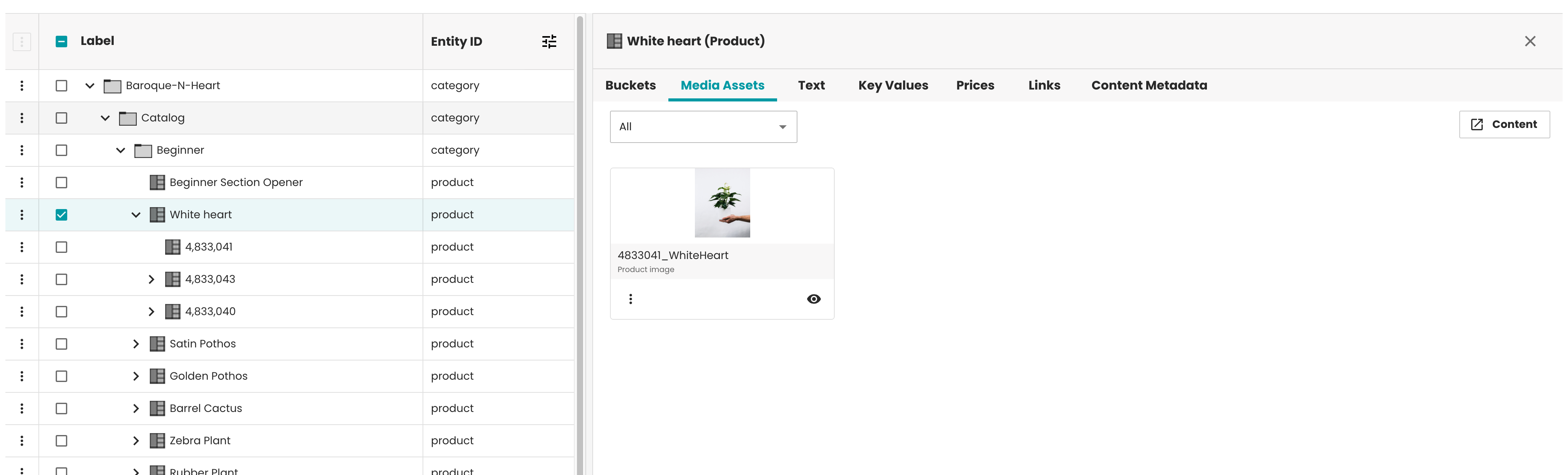
The Beginner and Easy categories carry their own content: an intro text (headline, intro) in English, French, and German, and a category image.
Each plant is a product bucket with:
- Key values:
plant_name,latin_name,description,short_description,care_instructions,care_description, andprice, provided in English, French, and German contexts. - Media assets: one
product_imageand up to threeproduct_applicationimages, referenced by filename and path. - Order variants: child buckets, one per SKU, with
sku,quantity, andpricekey values.
The KeyValueTranslation sheet provides translated labels for these keys, for example care_instructions as "Care Instructions" in English and "Instructions d'entretien" in French.
The media asset paths in the demo file use the server volume path file-system/aio. This path must match a volume in your server volume configuration.
The same file works on any server with the matching volume configuration. See Media Asset Path and Server Volumes.
After a successful import, the content is available in priint:planner or priint:data-management.