Import via Hotfolder
The hotfolder trigger uses a Camunda timer process to import files on a schedule. Drop import files into the configured hotfolder directory. The process picks them up, runs the import, and moves each file to a success or error folder.
Process Flow
- Upload the import file to the hotfolder (e.g.
/opt/pubserver/userdata/hotfolder/). - When the timer fires, the process moves the file to the processing folder.
- The import plugin processes each file in the processing folder.
- On success, the file moves to
scanSuccessFolder. On failure, it moves toscanErrorFolder.
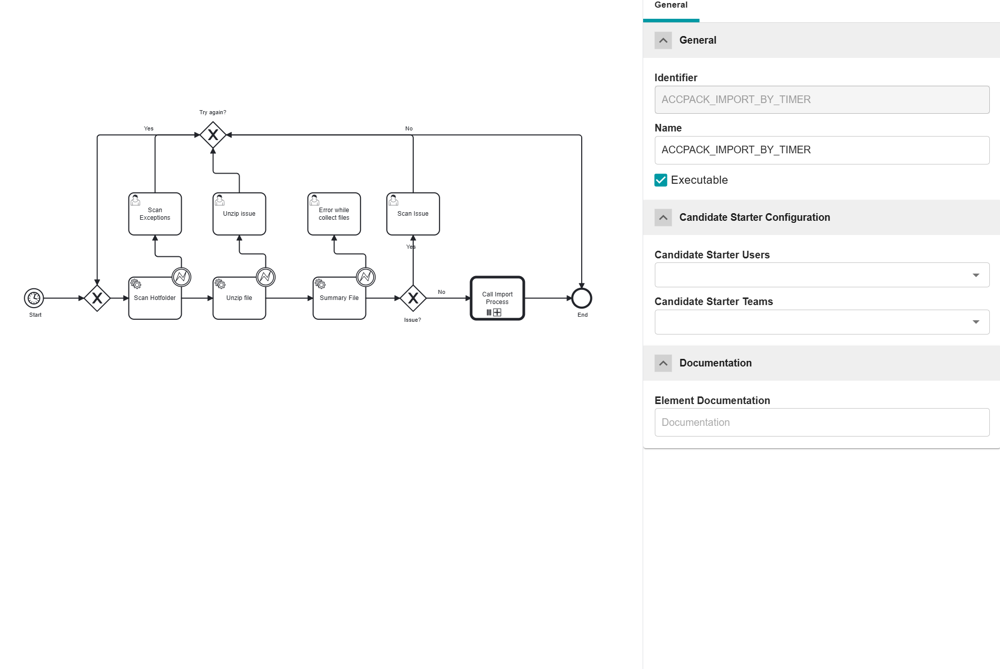
Process Configuration
| Step | Parameter | Example value | Description |
|---|---|---|---|
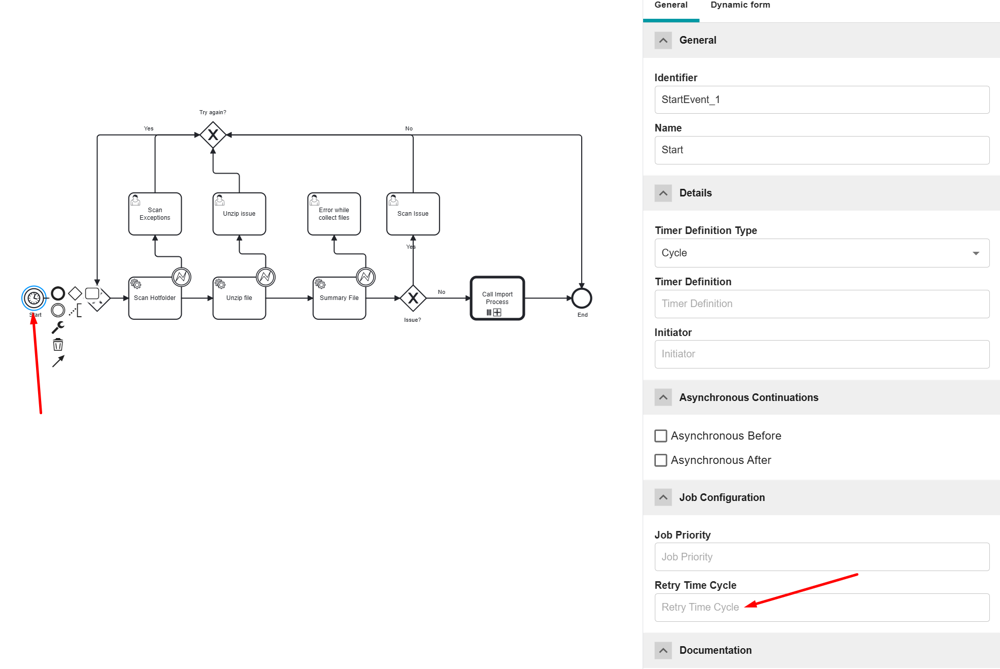
| Timer start event | Timer definition type | Cycle | Sets the schedule type |
| Timer definition | R3/PT5M | See Timer Schedule Format | |
| Scan hotfolder | hotFolder | /opt/pubserver/userdata/hotfolder/ | Directory scanned for import files |
scanSuccessFolder | /opt/pubserver/userdata/hotfolder/success/ | Destination for successfully imported files | |
scanErrorFolder | /opt/pubserver/userdata/hotfolder/error/ | Destination for failed import files | |
processingFolder | /opt/pubserver/userdata/hotfolder/processing/ | Temporary directory while import is running |
Timer Schedule Format
See the Camunda timer events reference for full documentation.
| Timer definition type | Example | Description |
|---|---|---|
| Date | 2024-10-01T08:00:00Z | Run once at a specific time (ISO 8601) |
| Duration | P5D, PT10H | Run after a delay (5 days, 10 hours) |
| Cycle | R3/PT10M | Run 3 times, 10 minutes apart |
| Cycle (cron) | 0 0 8 ? * MON | Run every Monday at 08:00 |
Sample Files
This example uses the Generic Import Profile format.
The sample file below contains a complete set of test data. Drop it into the hotfolder to get started. Its media asset paths use the server volume path file-system/aio, which must match a volume in your server volume configuration.
You can extend this format. For the full column reference and format specification, see Generic Import Excel Format.
The demo data references image files by path and filename (for example 4832941_StainPothos.jpg). The image files must already exist in the referenced volume, otherwise the imported media assets point to nothing. To upload them, see Import image via system volume.
The hotfolder import only scans and imports data files (.xlsx or .csv). Image uploads are not supported through the hotfolder, as the process does not include any image or volume configuration.
Depending on your configuration, the imported content can be used in priint:planner or priint:data-management.