Import via AdminUI
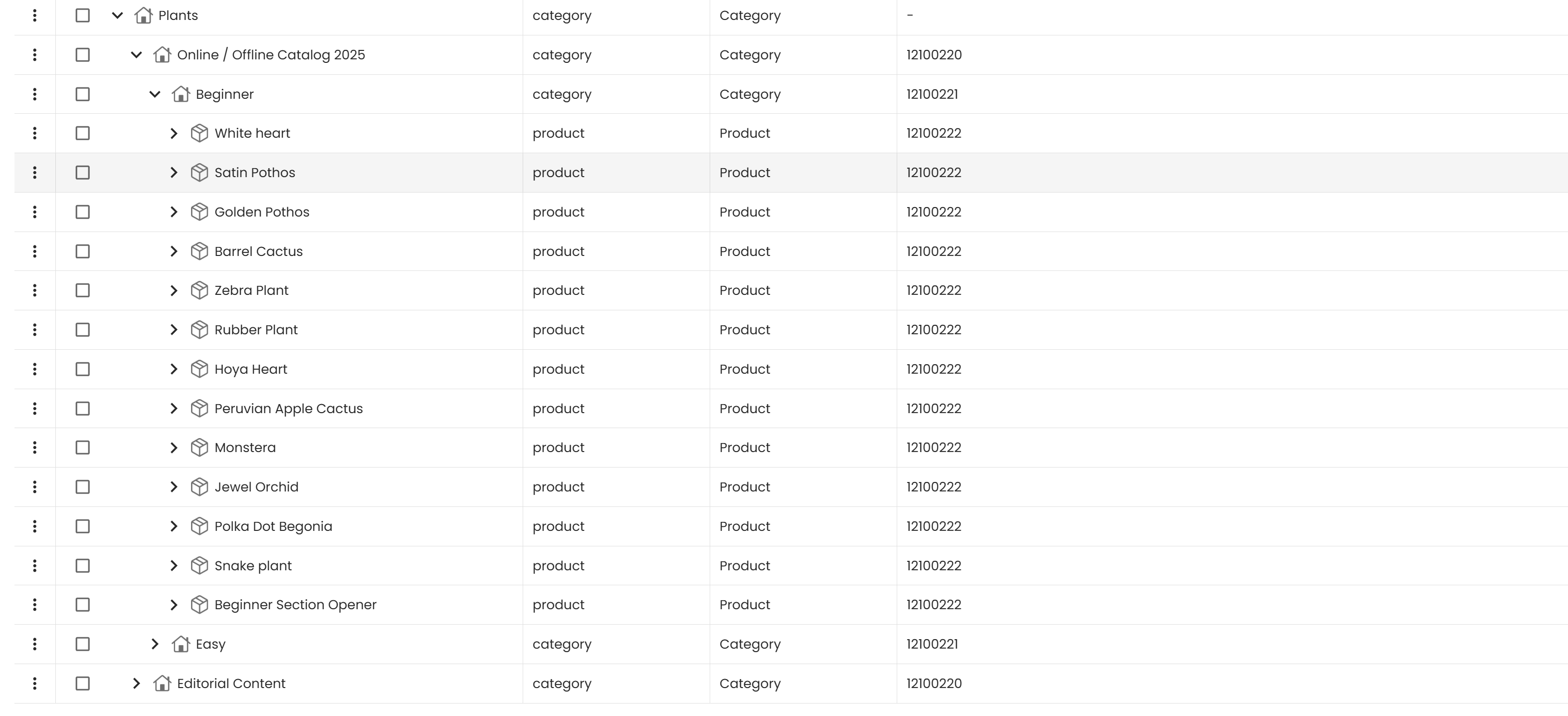
This example shows how to import product data into the demo system using an Excel file and the AdminUI. It uses the Baroque-N-Heart Plants demo data set and the Generic Import Profile.
What You Need
- A running Publishing Server with the AccPack installed. More information on installation
- The Camunda process
Accpack import datadeployed and active. - An Excel file in the Generic Import Profile format (see Generic Import Excel Format)
- Images provided by the consistent demo data (Optional if you use your own images)
Import via AdminUI
- Log in to the AdminUI
- Navigate to the Processes section
- Navigate to the Generic Import section
- Set the following options:
- Process Type:
Import - Object Type:
Folder Publication - Process:
Accpack import data - Upload File: your Excel or CSV file
- Process Type:
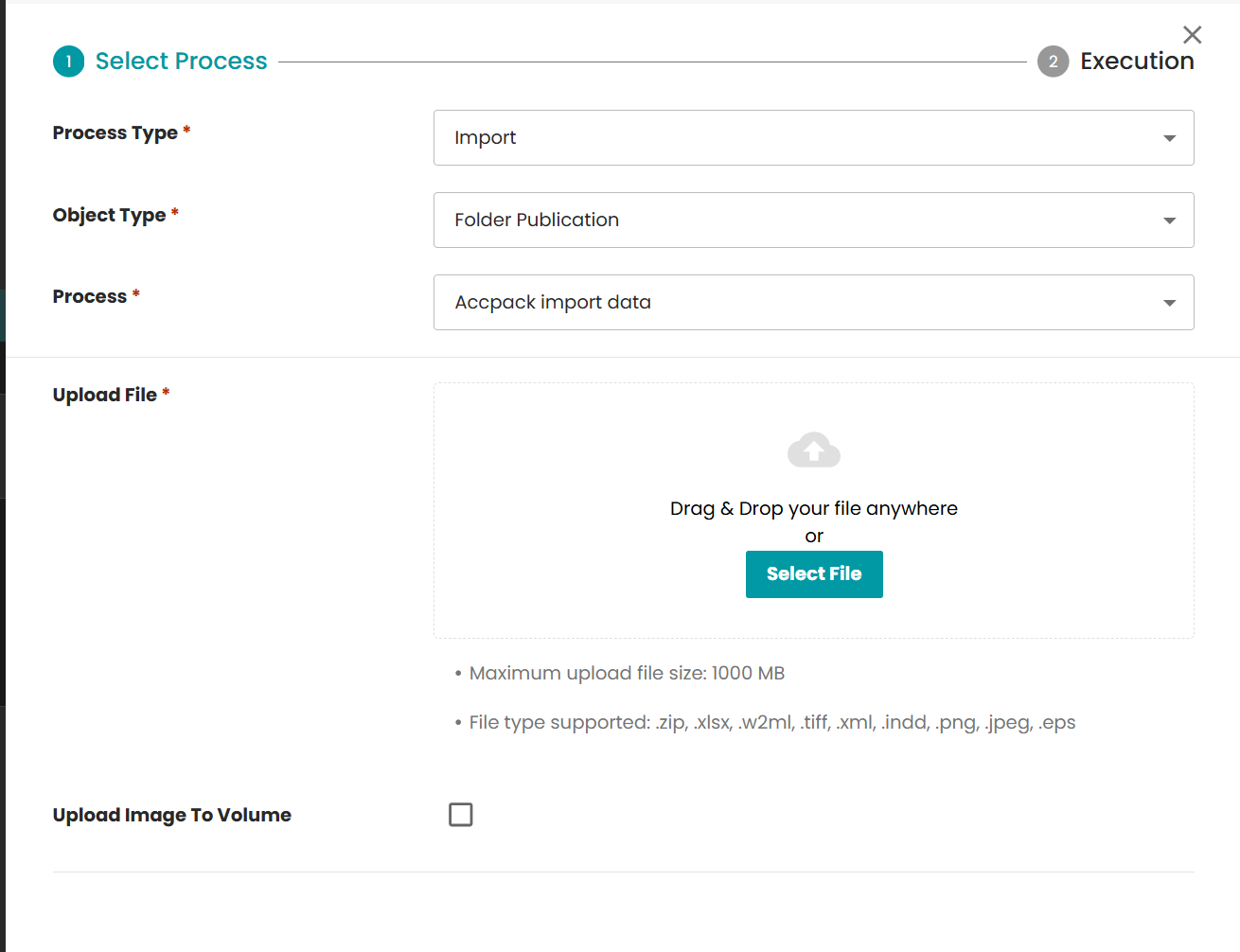
Supported file types: Excel (.xlsx) and CSV (.csv) for the Data Import. Zip-Archives (.zip) for images.
The import runs as a Camunda process. Follow the process result in AdminUI for success or error details.
Upload the Images With the Data
The import file references its images by path and filename. The image files must exist in the referenced volume, otherwise the imported media assets point to nothing.
Upload Image To Volume brings the images in during the same import run. Tick the checkbox and the following options become available:
- Choose A Volume: Choose the Volume of the object storage that you reference inside the import file. Check the installation to see which configuration is expected.
- Upload Image: Choose a ZIP file that contains a flat directory of images as referenced by the filename in the Excel import.
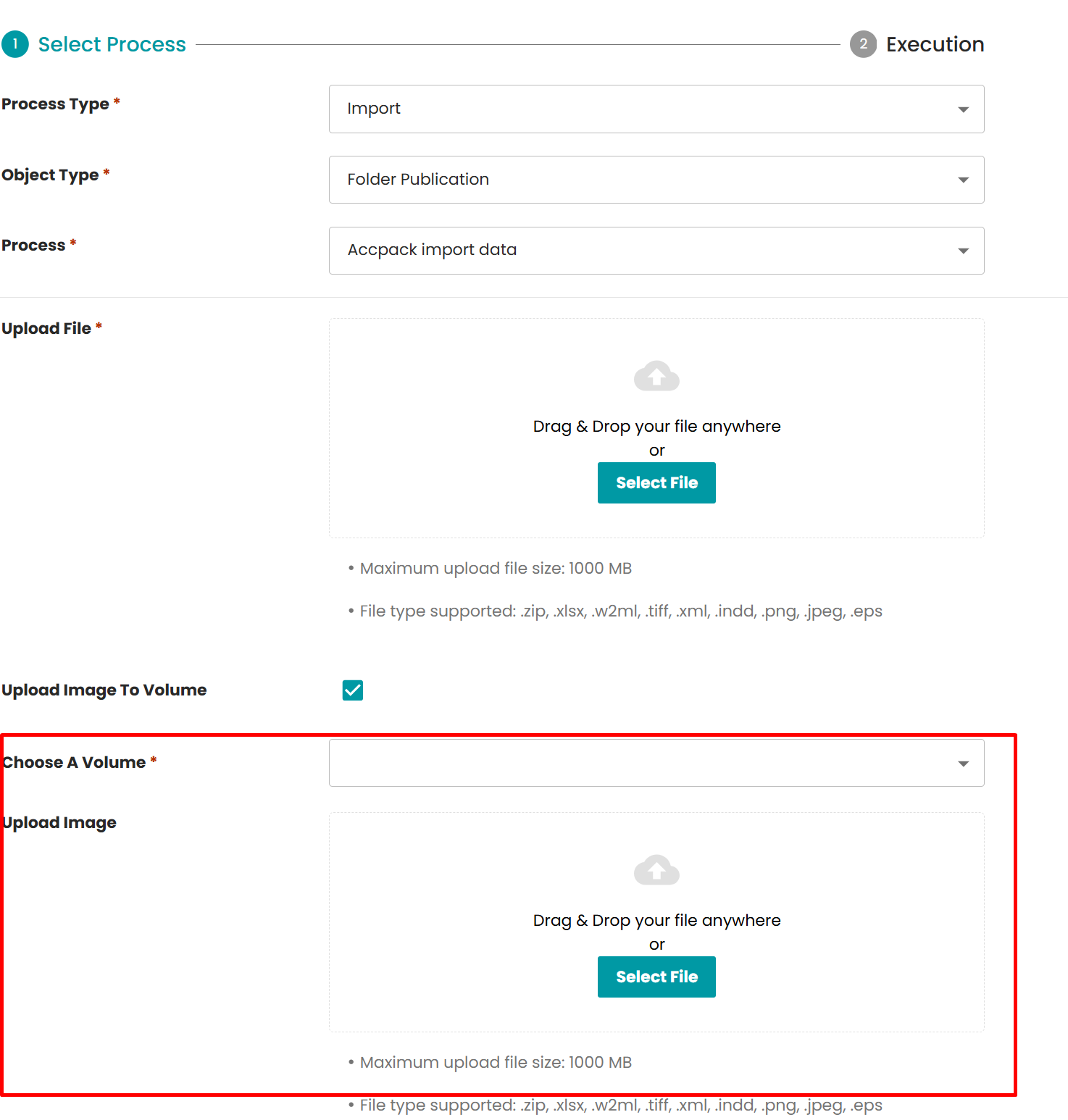
The AdminUI handles the upload for you. Both the data and the images are processed in one run, and the process result reports errors from either part.
For the technical detail behind this step, and for how to upload images without importing data, see Import image via system volume.
Sample Files
This example uses the Generic Import Profile format.
The sample file below contains a complete set of test data. Upload it to get started. Its media asset paths use the server volume path file-system/aio, which must match a volume in your server volume configuration.
You can extend this format. For the full column reference and format specification, see Generic Import Excel Format.
The demo data references image files by path and filename (for example 4832941_StainPothos.jpg). Tick Upload Image To Volume and supply these images as a ZIP file, so the imported media assets point to existing files.
Result
After a successful import, the content is available in priint:planner or priint:data-management.